Practice tests
Take a practice test
The Testing Simulator answers a practice exam you already have open. You do not paste the questions here. TyporaAI reads them from the focused exam window.
Open TyporaAI and the practice exam before you begin. Need the app? Download TyporaAI. Screenshots show the Mac app in dark mode. Download 0.1.22 or later so Testing Simulator is available.
Step 1 of 3
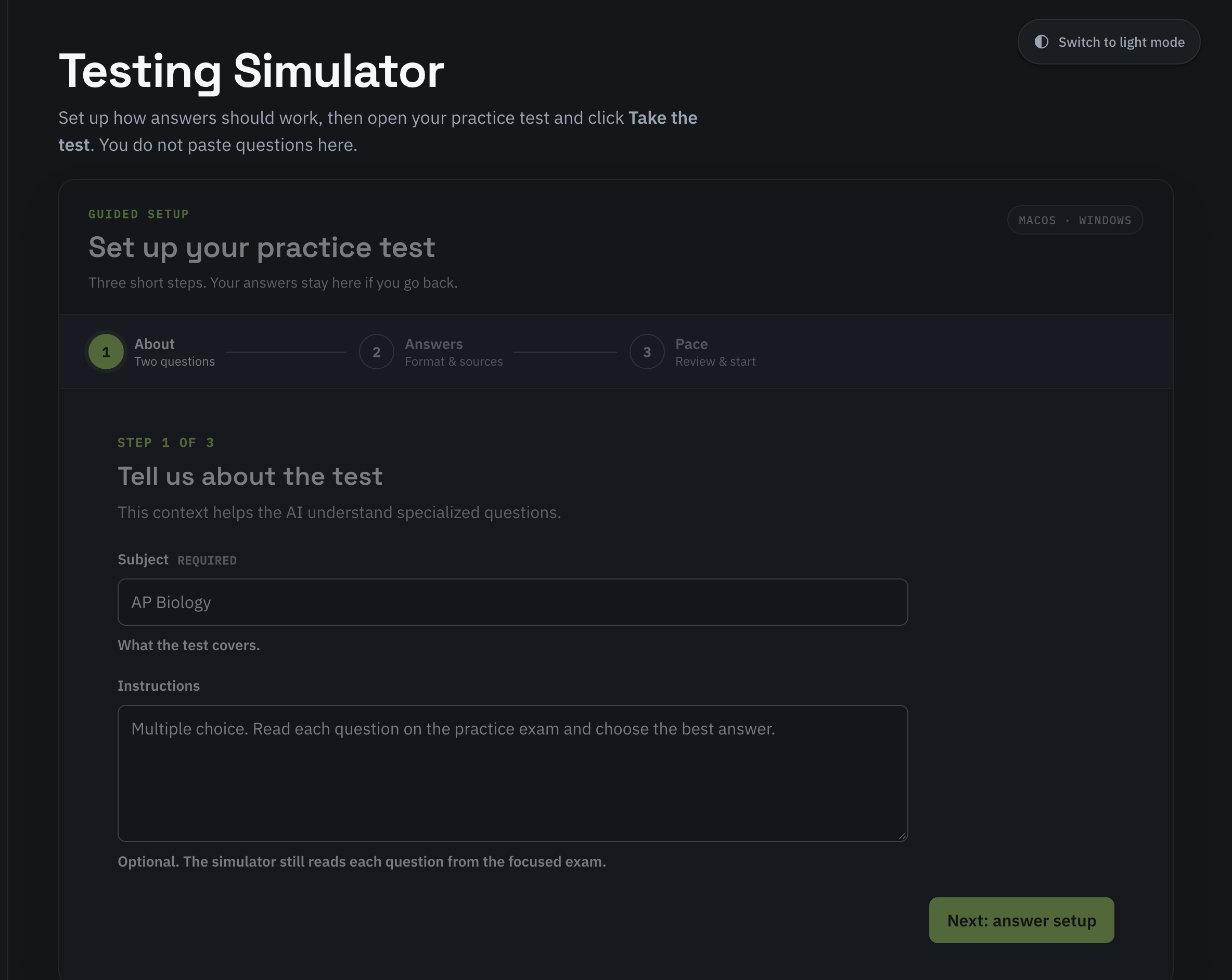
Tell TyporaAI about the test
In Subject, enter what the test covers, such as AP Biology. Instructions are optional. Use them for chapters, concepts, or answer rules the AI should know.
The simulator still reads each question from the exam. Choose Next: answer setup.
 View full size (new tab)
Step 2 of 3
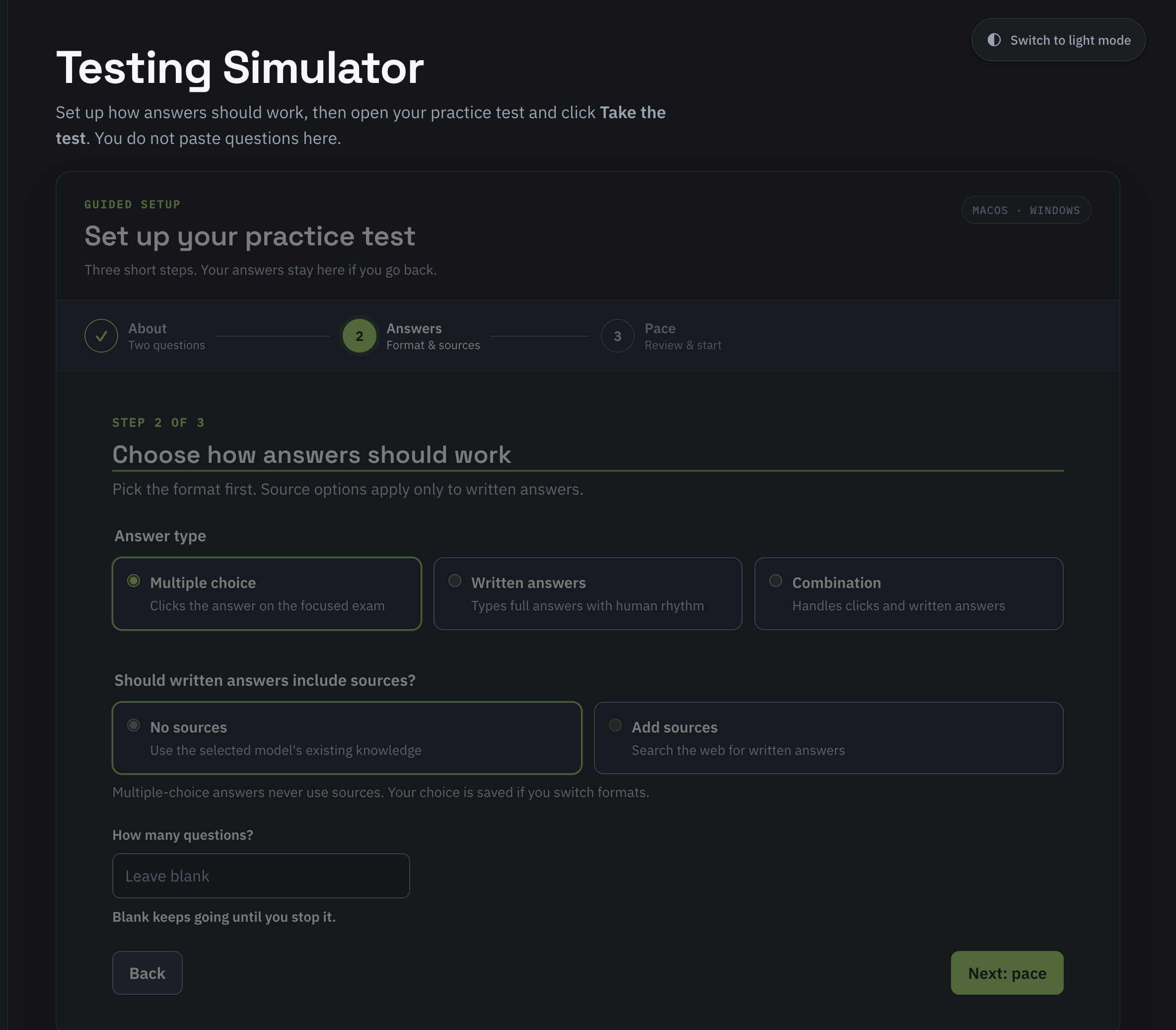
Choose how answers should work
- Multiple choice clicks the answer on the focused exam. It never uses sources.
- Written answers type a full answer with a human rhythm. You can leave sources off or ask for a web search.
- Combination handles clicks and written answers on the same exam.
How many questions? can be from 1 to 200. Leave it blank and the run continues until you stop it. More on formats: How test answers work.
 View full size (new tab)
Step 3 of 3
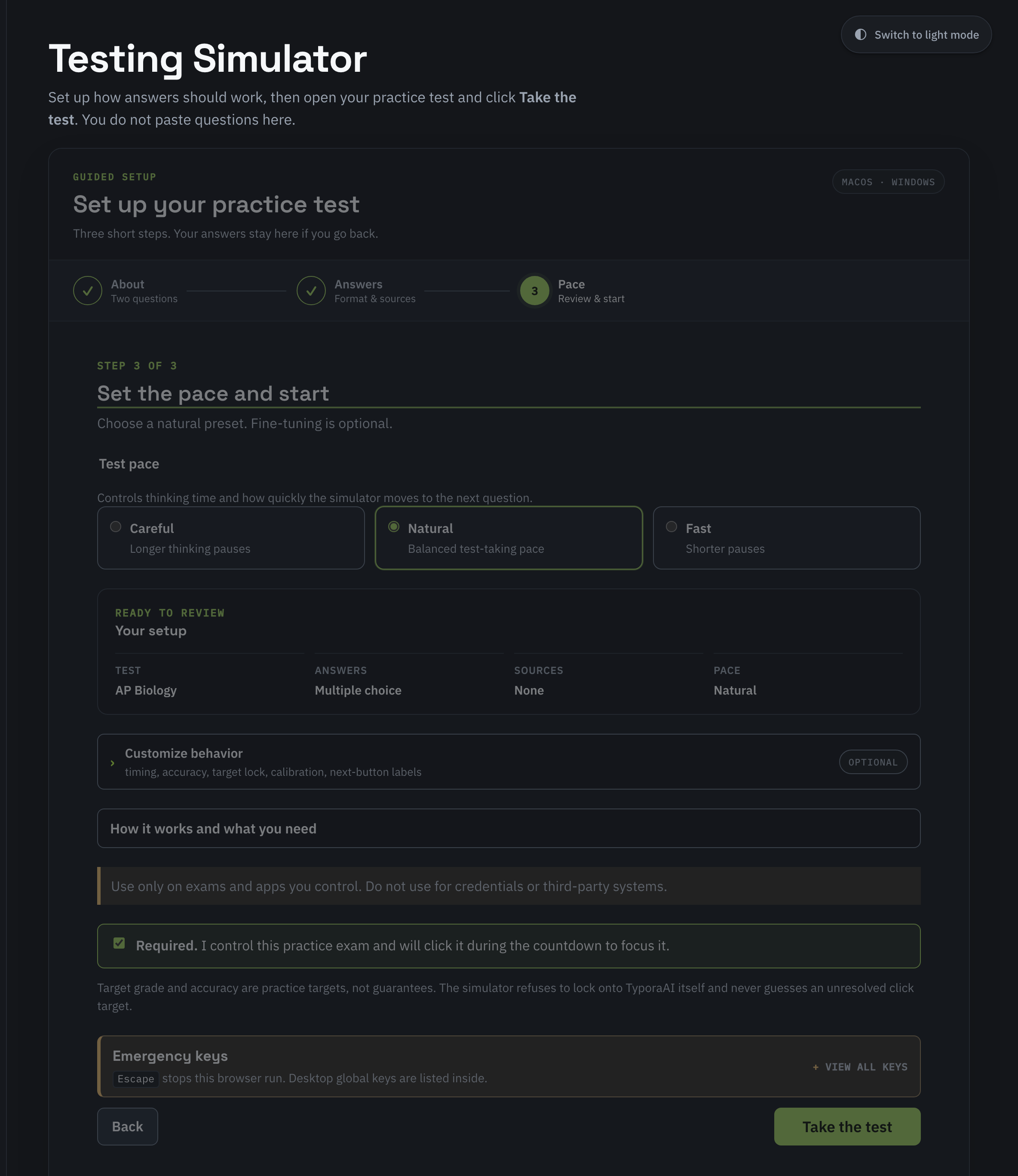
Set the pace and start
- Careful thinks for 4 to 18 seconds before each answer.
- Natural thinks for 2 to 12 seconds. This is the starting choice.
- Fast thinks for 0.8 to 5 seconds, with shorter pauses before the next question.
Check the review, then confirm you control the exam. Choose Take the test. During the five-second countdown, click the exam window so it stays focused. Hovering does not focus it. Pace details: Test pace.
 View full size (new tab)
Before it can run
What the run needs
- A signed-in TyporaAI account with an active subscription. Check the Account page in the app.
- On a Mac, Accessibility permission. Windows needs no extra permission.
- The exam window focused during the countdown. TyporaAI will not lock onto its own window, and it will not guess a click it cannot resolve. Target grade and accuracy are practice targets. They do not guarantee a score.
Pause before you use the computer
Use Pause or Stop and wait until the run stops before you click another window. Changing focus during a run can send the next click to the wrong place.
- Pause
- Cmd + Shift + P
- Resume
- Cmd + Shift + R
- Stop
- Cmd + Shift + S
- Show TyporaAI
- Cmd + Shift + Option + T
These are the Mac shortcuts. On Windows, Pause is Ctrl + Shift + P, Resume is Ctrl + Shift + R, Stop is Ctrl + Shift + S, and Show TyporaAI is Ctrl + Shift + Alt + T. In the TyporaAI window, Escape also stops the test.
Use this only on exams and apps you control. If a school, workplace, or testing service does not allow this kind of help, do not use it there. Read the responsible use disclaimer.