Getting started
Write your first paper
Follow the four setup screens, then let TyporaAI type into your document. This guide walks through each choice in the desktop app.
Open TyporaAI and your destination document before you begin. Need the app? Download TyporaAI. Screenshots show the Mac app in dark mode.
Step 1 of 4
Give TyporaAI your topic and instructions
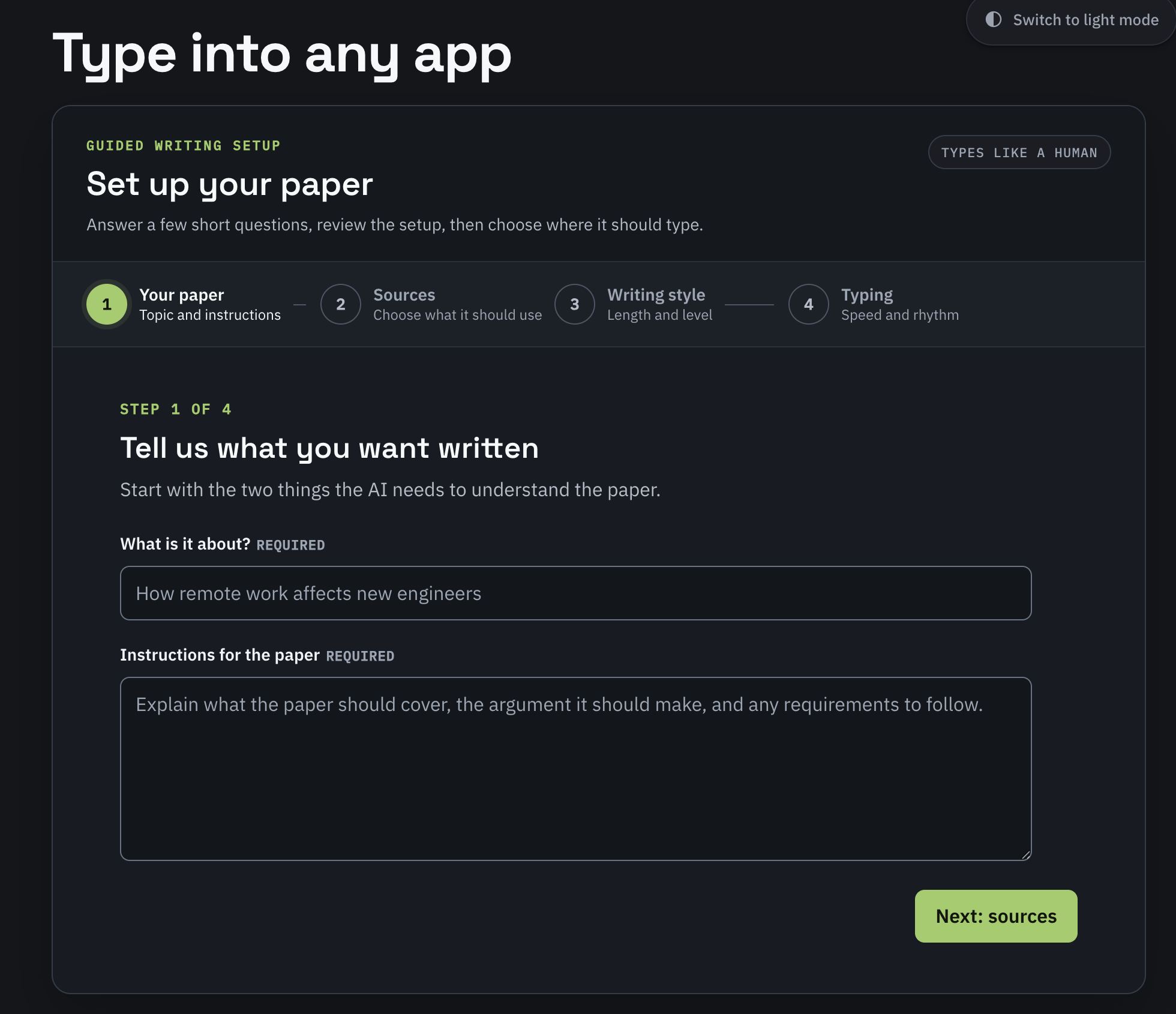
In What is it about?, enter your topic. Use Instructions for the paper to explain what to cover, the argument to make, and any requirements to follow.
Topic: How remote work affects new engineers. Instructions: compare remote and office onboarding, explain the tradeoffs for mentoring, and end with practical suggestions for managers.
Complete both fields, then choose Next: sources.
 View full size (new tab)
Step 2 of 4
Choose whether to use sources
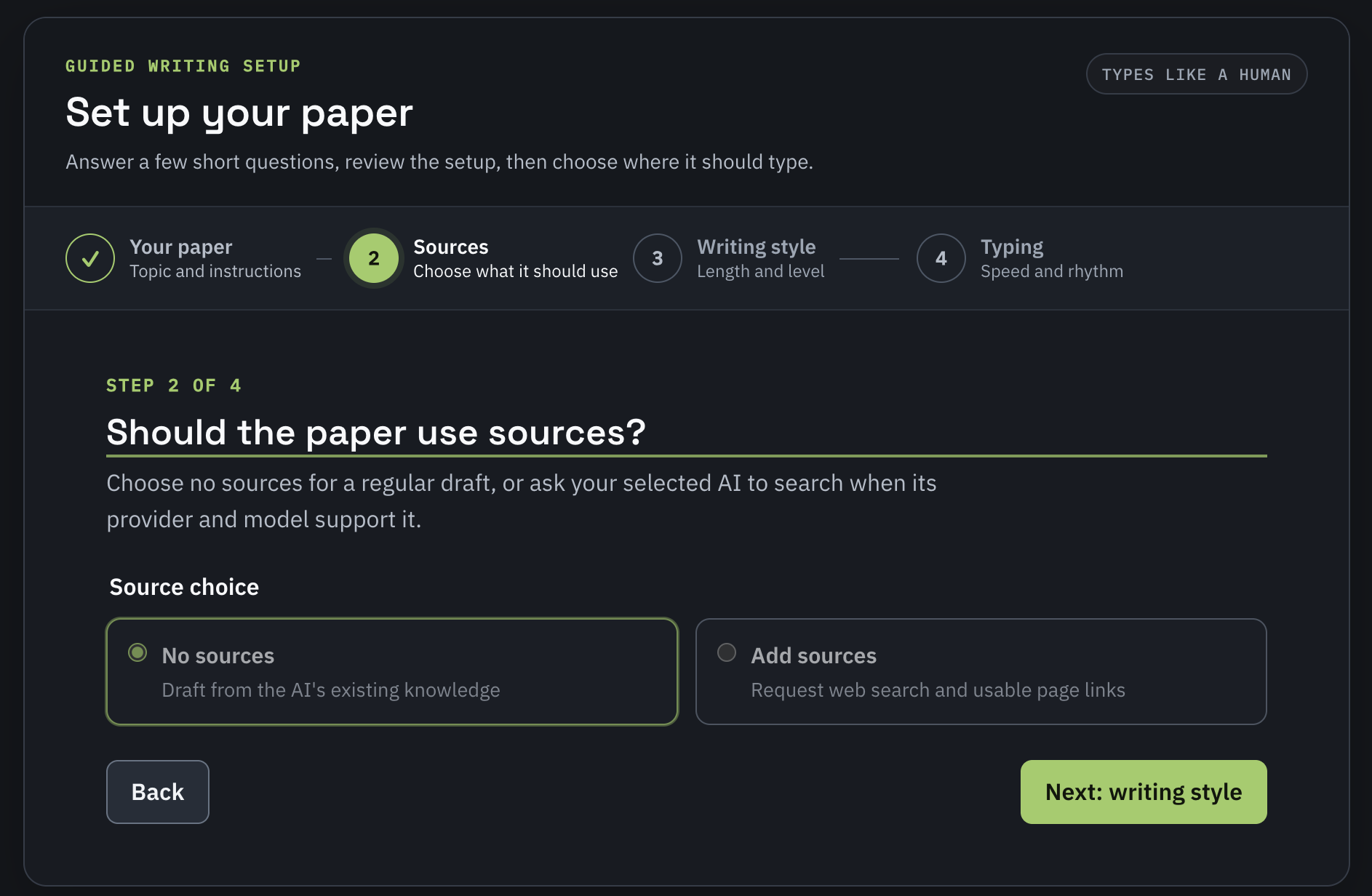
- No sources drafts from the AI's existing knowledge.
- Add sources requests web search and page links when your selected provider and model support it.
If you use sources, check that the linked pages support the claims in your finished paper. Continue with Next: writing style.
 View full size (new tab)
Step 3 of 4
Set the length and writing style
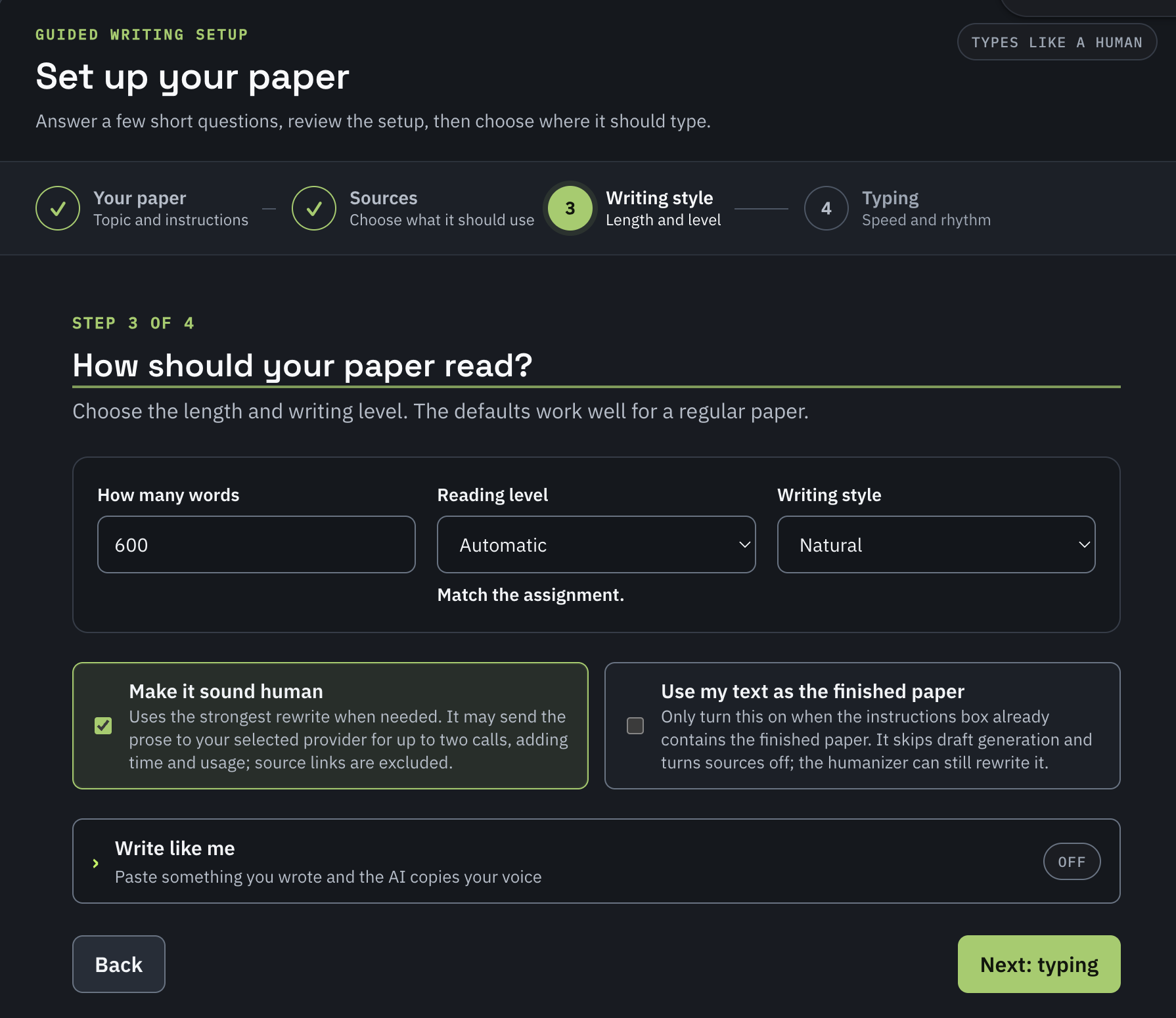
Enter your target word count, choose a reading level that fits the assignment, and pick a writing style. The screenshot shows 600 words, Automatic reading level, and Natural style.
- Make it sound human enables a rewrite when needed. It may send the prose to your selected provider for up to two extra calls, adding time and usage.
- Use my text as the finished paper is for a completed paper already pasted into the instructions box. TyporaAI skips draft generation and turns sources off. The humanizer can still rewrite it if enabled.
- Write like me lets you provide a sample of your own writing to guide the voice.
Choose Next: typing when the writing setup is ready.
 View full size (new tab)
Step 4 of 4
Customize TyporaAI’s typing
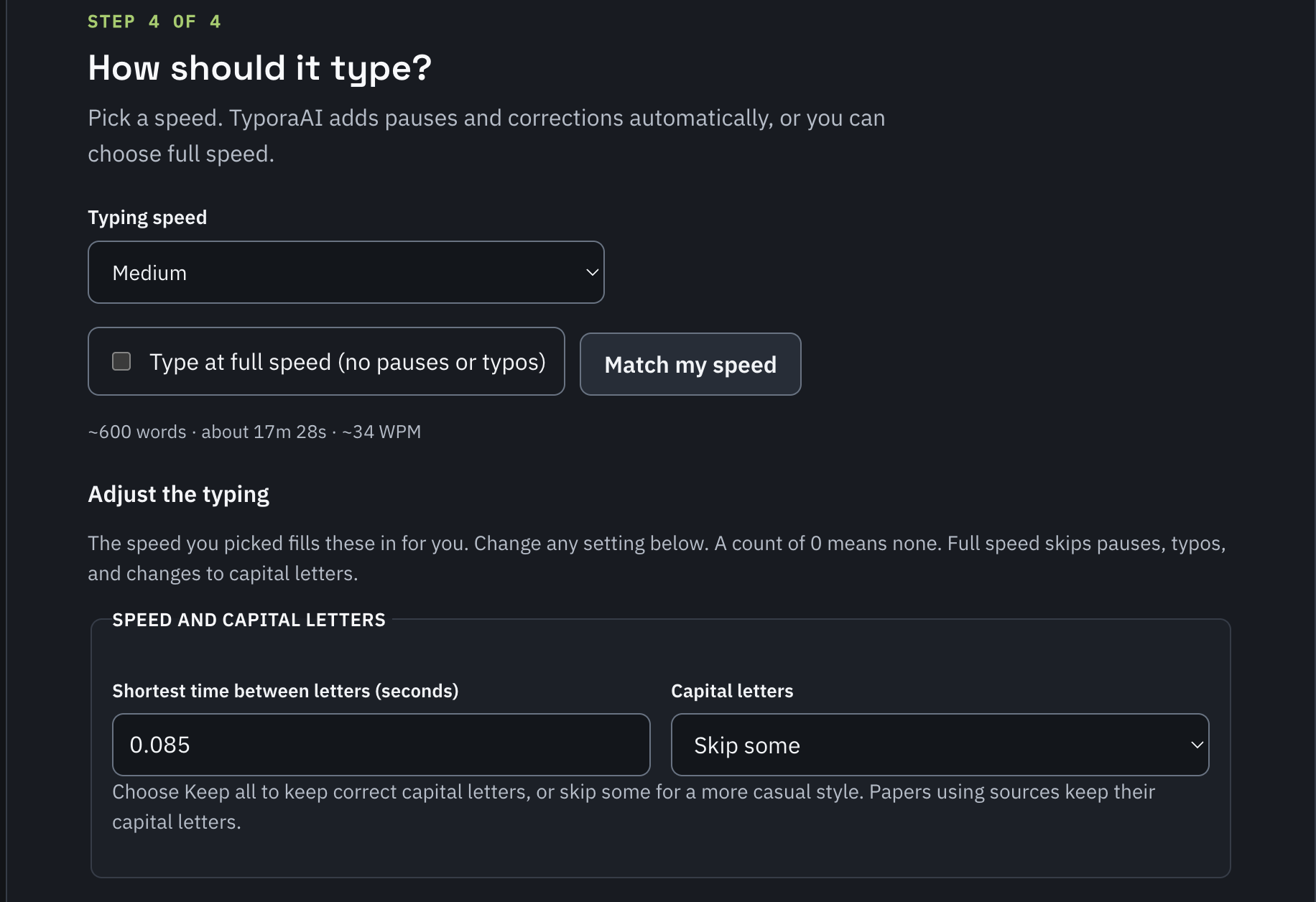
Pick a Typing speed preset to fill in the rhythm settings. The estimated duration helps you plan the run. Select Type at full speed to skip pauses, typos, and changes to capital letters.
Under Capital letters, choose Keep all to preserve capitalization, or Skip some for a more casual style. Papers using sources keep their capital letters.
 View full size (new tab)
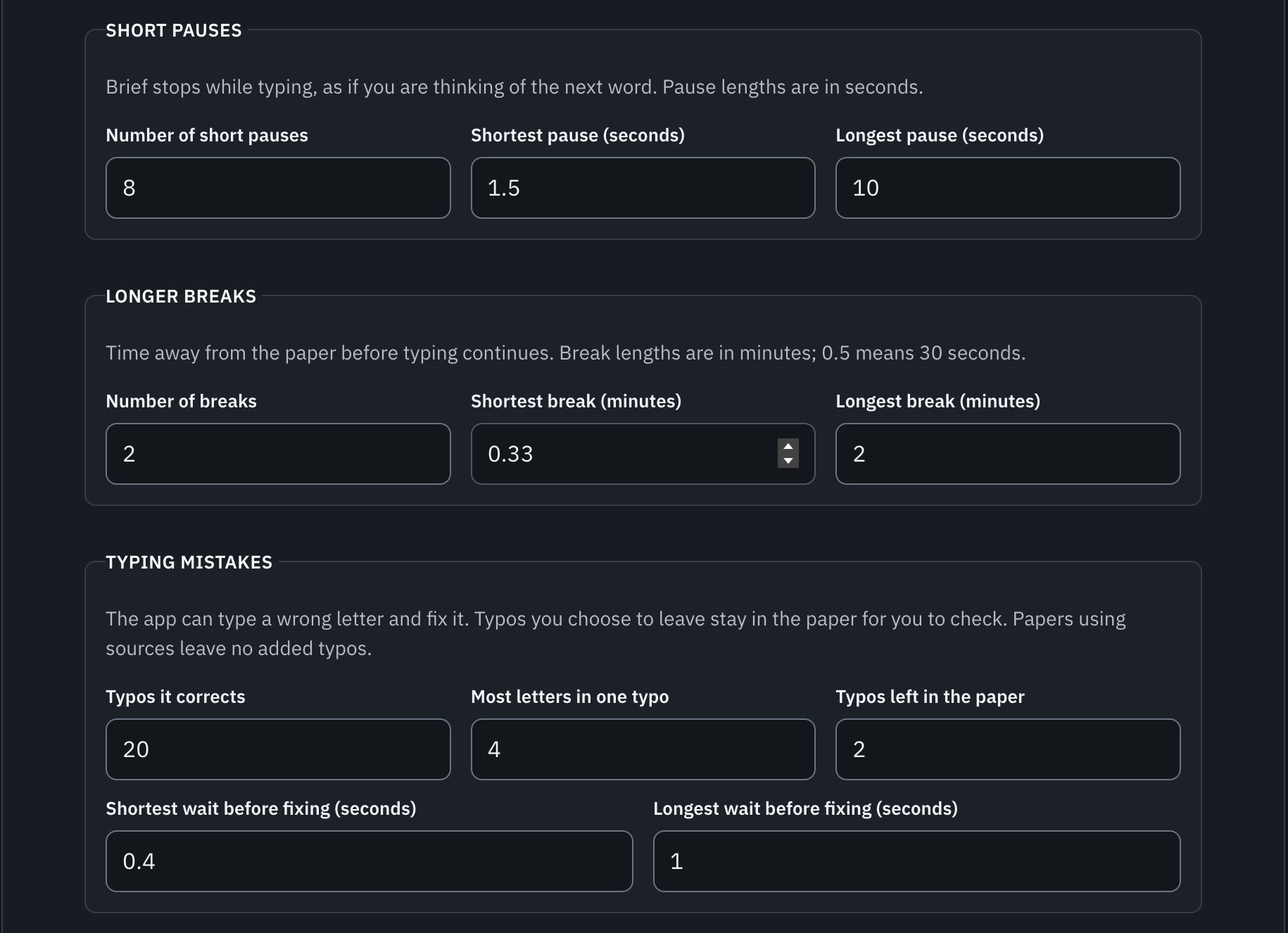
Adjust pauses, breaks, and mistakes
You can keep the preset or change individual settings. A count of 0 means none.
- Short pauses: choose how many brief stops to add and their minimum and maximum length in seconds.
- Longer breaks: set the number and length in minutes. For example, 0.5 minutes is 30 seconds.
- Typing mistakes: set how many typos are corrected, how large they can be, and how long to wait before fixing them. Typos you choose to leave remain in the paper; papers using sources leave no added typos.
 View full size (new tab)
Fine-tune the rhythm, then review
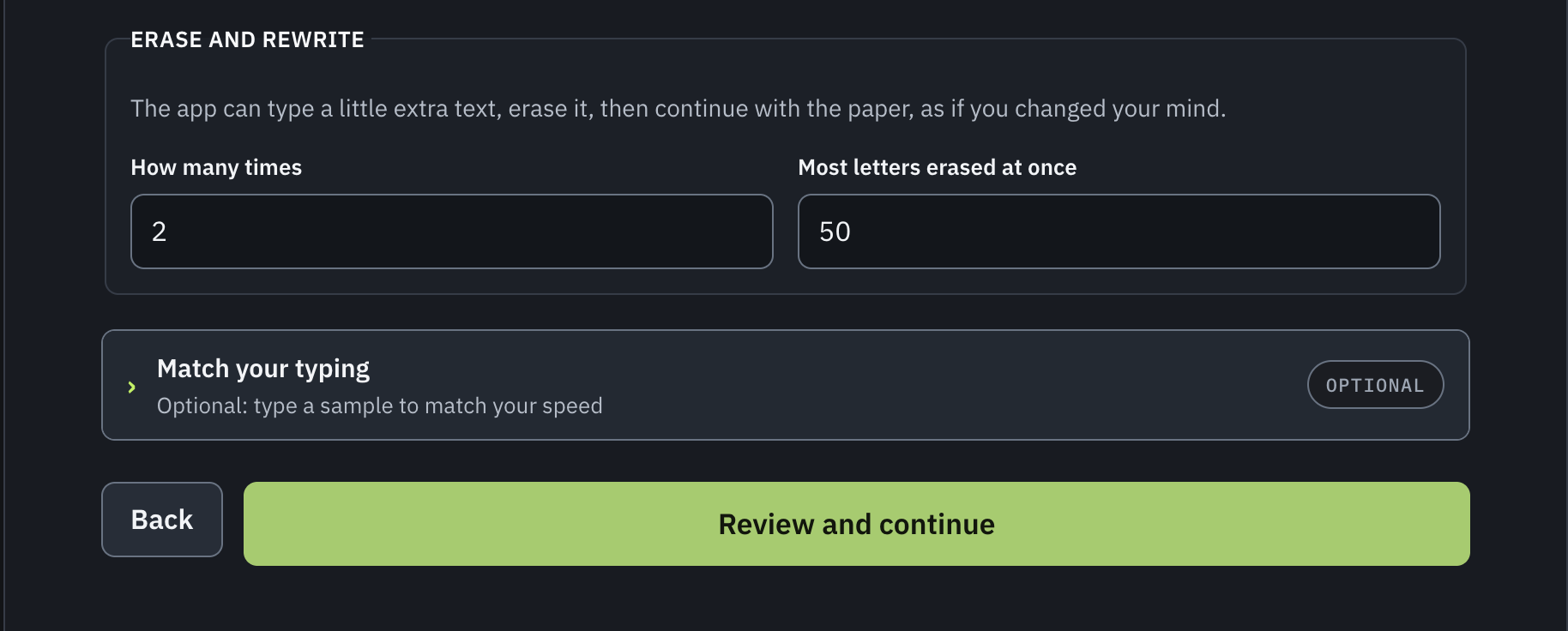
Erase and rewrite adds moments where the app types extra text, erases it, and continues. Set how often this happens and the most letters erased at once. The optional Match your typing section lets you type a sample to match your speed.
Choose Review and continue to reach the final screen.
 View full size (new tab)
Ready to write
Start the run and focus your document
- Open the document or text field where the paper should go.
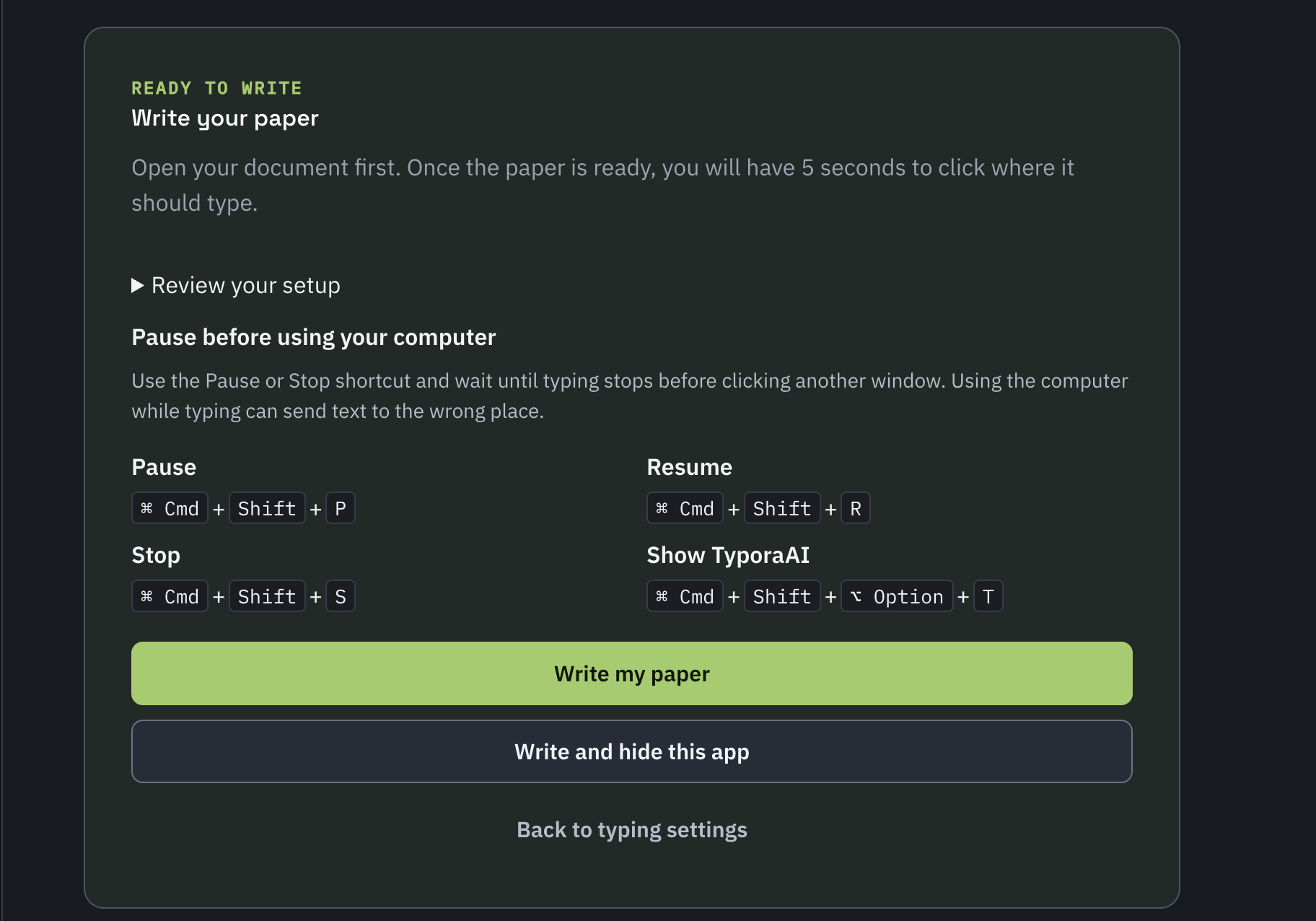
- Expand Review your setup to check your choices. Use Back to typing settings if you need to change them.
- Choose Write my paper, or Write and hide this app to hide TyporaAI during the run.
- Once the paper is ready, use the five-second countdown to click exactly where you want it to type.
 View full size (new tab)
Pause before using your computer
Use Pause or Stop and wait until typing stops before clicking another window. Changing focus during a run can send text to the wrong place.
- Pause
- Cmd + Shift + P
- Resume
- Cmd + Shift + R
- Stop
- Cmd + Shift + S
- Show TyporaAI
- Cmd + Shift + Option + T
These are the Mac shortcuts shown above. On Windows, use the shortcuts displayed in your app.
When typing finishes, read through the paper, check its sources, and make any final edits in your document.